Test Push Notifications Online
Send FCM notifications via HTTP v1 — trusted by developers testing Android, iOS, and web apps.
Free online FCM push notification tester
TestFCM.in helps mobile and web developers send test push notifications through Firebase Cloud Messaging (FCM) HTTP v1 without writing backend code. Paste your Project ID, OAuth access token, and device registration token, then dispatch a notification to a real Android, iOS, or web client in seconds.
Google deprecated the Legacy FCM API (server key). TestFCM supports HTTP v1 only — the current standard that uses short-lived OAuth tokens and the endpoint fcm.googleapis.com/v1/projects/…/messages:send. Our server-side proxy forwards requests so your browser is not blocked by CORS when calling Google's API.
Whether you are debugging a new Firebase integration, verifying notification channels on Android, or checking APNs delivery on iOS, this tool gives you a fast feedback loop. Read our complete testing guide, browse the documentation hub, or jump straight to the form below.
How to get each field
Follow these steps, then paste values into the form on the right. TestFCM uses FCM HTTP v1 only.
- 1
Project ID
→ Project IDYour Firebase project identifier.
- Open Firebase Console → select your project.
- Click the gear icon → Project settings.
- Copy the value under General → Project ID.
- 2
Access Token (OAuth 2.0)
→ Access TokenOAuth 2.0 token from gcloud — NOT the FCM device token.
- This is NOT your FCM registration / device token (never paste APA91… here).
- Install Google Cloud SDK, then run: gcloud auth login
- Run: gcloud auth application-default login
- Run: gcloud auth print-access-token
- Copy the token — it usually starts with ya29. — and paste into Access Token.
Access Token ≠ Device Token. Device token goes in the FCM Registration Token field only.
gcloud token docs ↗ - 3
FCM Registration Token
→ Device TokenUnique token for the device or app instance that should receive the push.
- In your Android/iOS/Web app, call Firebase Messaging getToken().
- Log or copy the token from app debug output.
- Paste the full token into the form on the right.
- 4
Title & Message
→ Title / MessageThe notification text your user will see on the device.
- Enter a short Title (e.g. "Test notification").
- Enter the Message body shown in the notification tray.
- Optional: add Click Action URL, Image URL, or JSON Data payload.
- 5
Send & Save
→ Send NotificationDispatch the push and optionally store the request for later.
- Click Send Notification — your app calls our server, which forwards to FCM (avoids browser CORS).
- Use Save Locally to store the request and re-test from the list above.
- Sign in with Google to sync saved requests across devices.
Built by dhruvdave.in
FCM guides & troubleshooting
Original documentation written for TestFCM users — setup, tokens, platform tips, and error fixes.
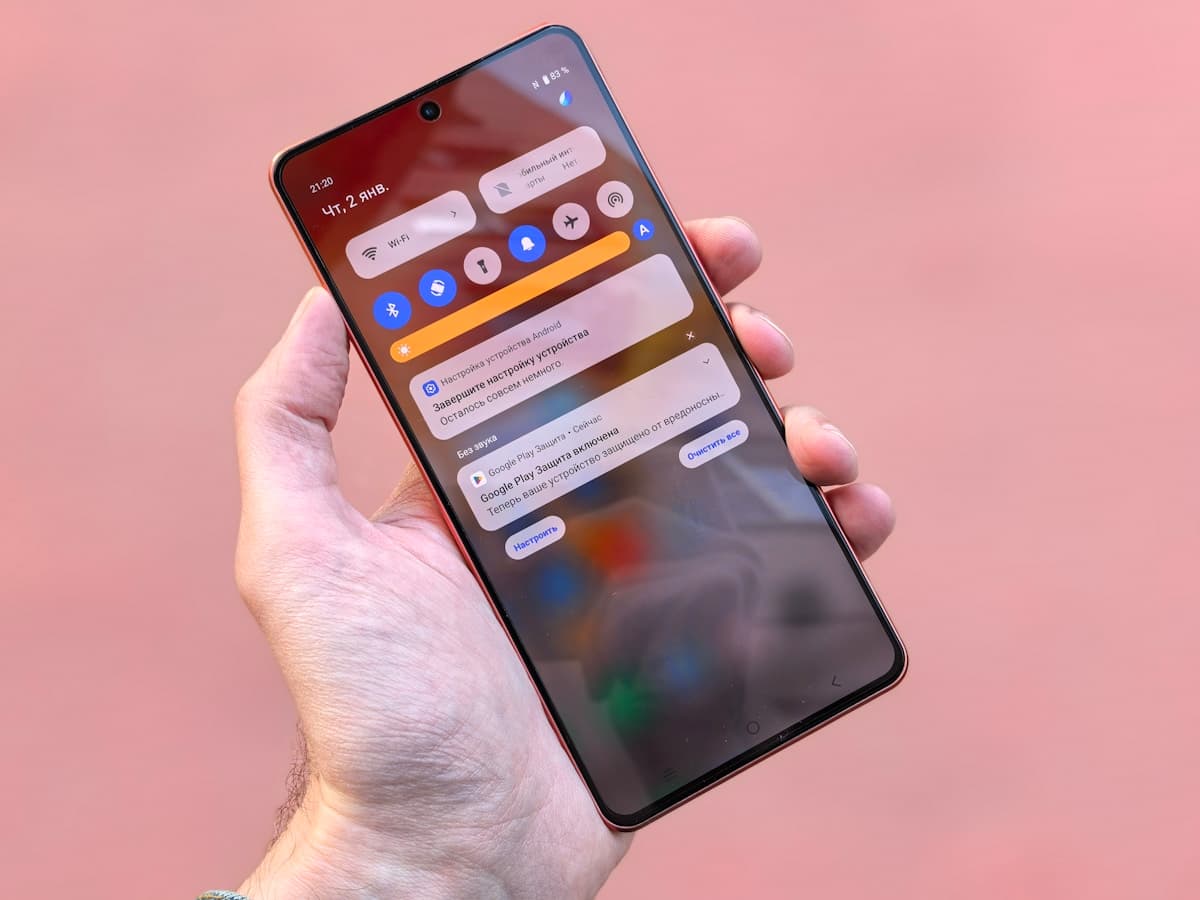
Complete Guide to Testing FCM Push Notifications
Learn how to test Firebase Cloud Messaging (FCM) HTTP v1 push notifications end-to-end using TestFCM.in — from project setup to delivery on real devices.
12 min read →
FCM HTTP v1 Setup for Firebase Projects
How to configure Firebase Cloud Messaging HTTP v1, enable required APIs, and prepare credentials for sending push notifications.
8 min read →
How to Get an OAuth Access Token for FCM
Step-by-step instructions to generate a valid ya29 OAuth token using Google Cloud SDK for FCM HTTP v1 API calls.
6 min read →
How to Get the FCM Device Registration Token
Platform-specific guide to retrieving the FCM registration token from Android, iOS, and web apps for push notification testing.
9 min read →